Lesson 4. Race Day Checklist
GOOD MAYHEM RACING LLC is an Authorized Dealer for GARMIN®. This training seminar is written by Nathan Sumrall of Good Mayhem Racing, by desert racers for desert racers. This blog will be continuously updated with images, stories, and details as time goes on. Please refer to this from time to time, as it will get better.
Topic for Today’s Training Seminar:
Lesson 4: Race Day Checklist
Online version of GMR RP 4N01
USING THE TREAD® IN THE CHASE TRUCK FOR RACE DAY
USING THE TREAD® IN THE PITS FOR RACE DAY
USING THE TREAD® IN THE RACE CAR FOR RACE DAY
SET UP TEAM TRACKING AT explore.inreach.com
IF TRACKING IS NOT UPDATING
INSTALL SUMMARY FOR RACE CAR
USING THE TREAD® FOR PRERUNNING
HOW TO SETUP YOUR GARMIN TREAD® DEVICE
4.0 OVERVIEW
4.0.1. The following points are quick and dirty ways to use your Garmin Tread Baja Race and Chase Editions. Real deal details are in lessons 1 thru 3.
4.0.2. There’s no time to learn like race day, but we at Good Mayhem Racing highly recommend all of this is tested, trained and rehearsed well in advanced.
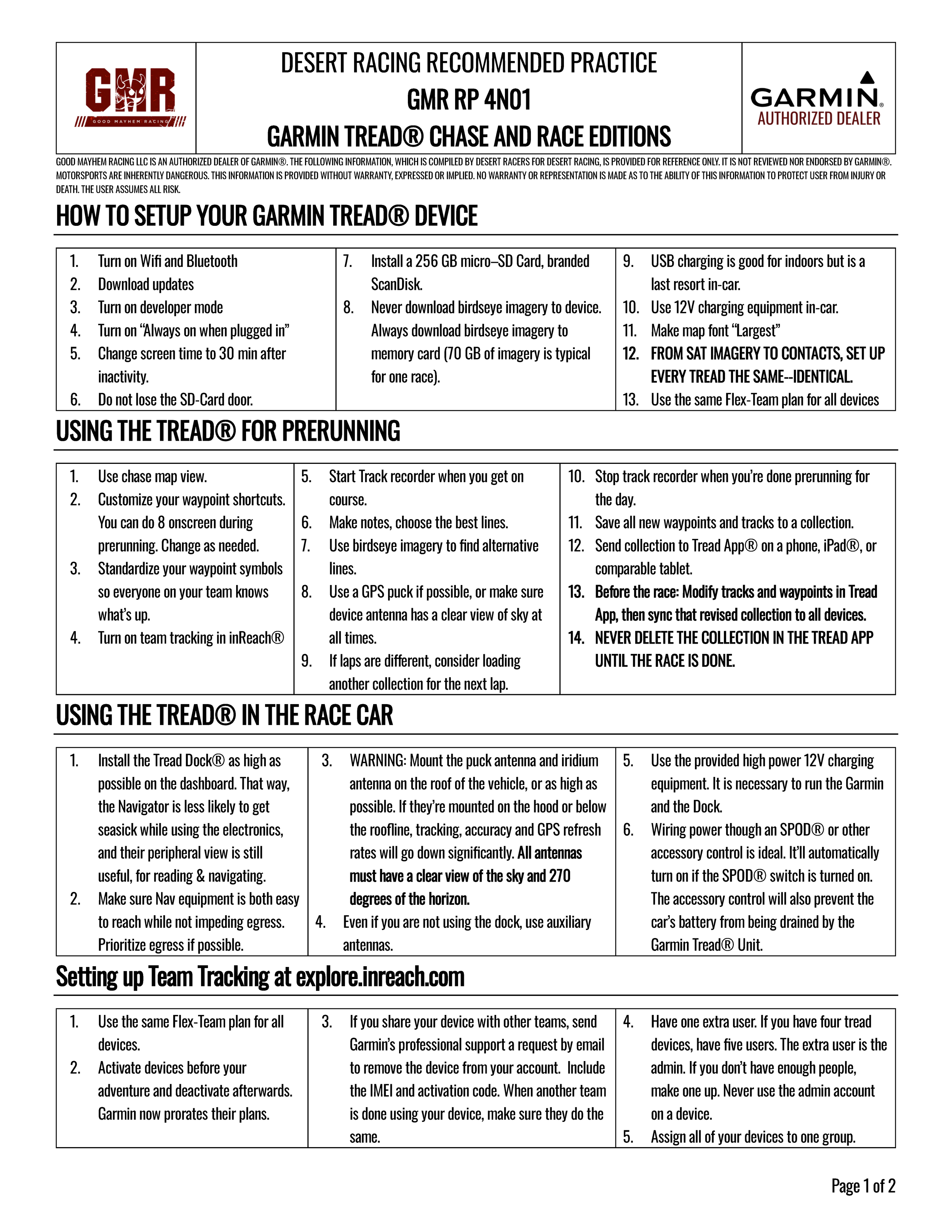
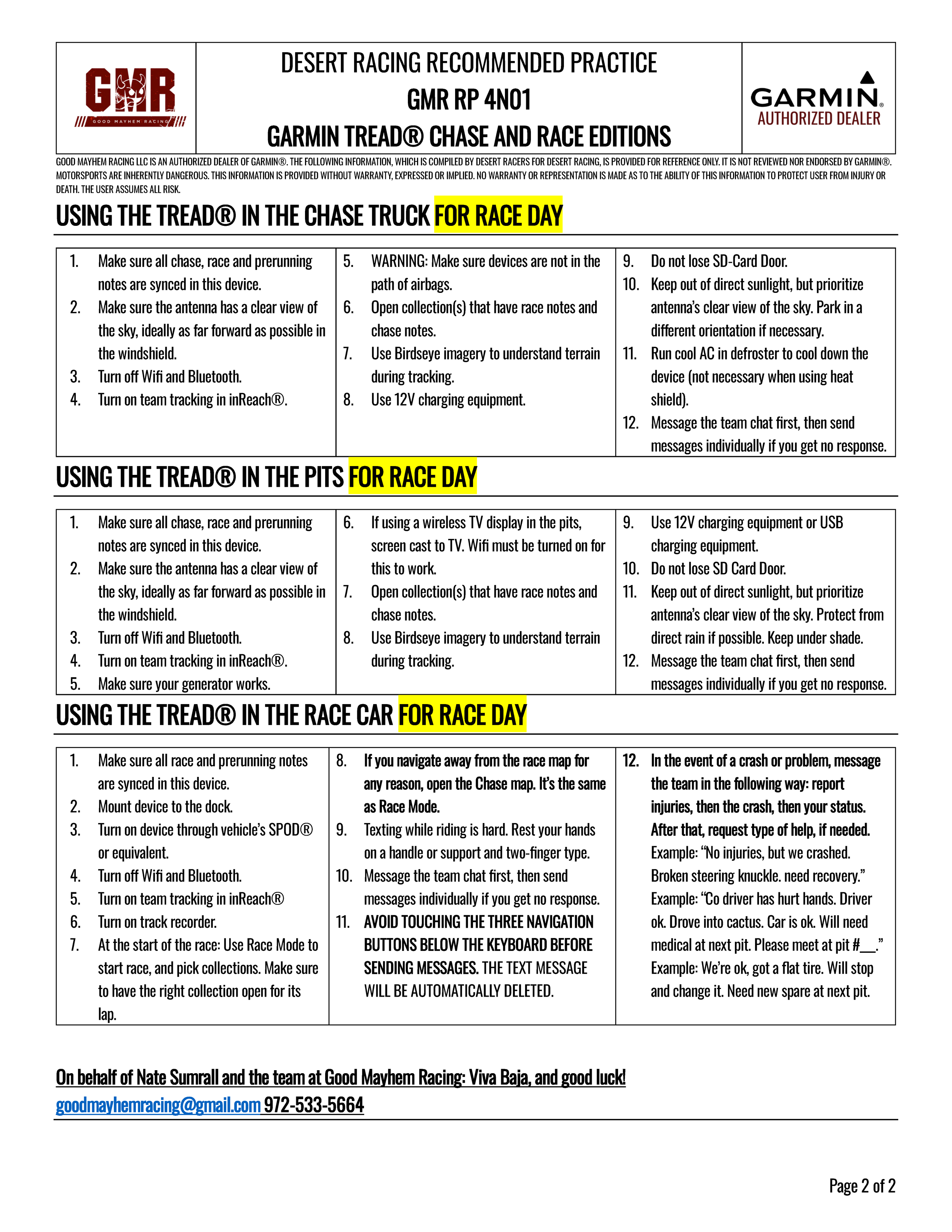
4.0.3. The following text is an webpage friendly version of the pdf in the link below. Scroll down to the bottom for the images and save it on your phone as a guide.
4.0.2. There’s no time to learn like race day, maybe the following will help.
4.1. USING THE TREAD® IN THE CHASE TRUCK FOR RACE DAY
4.1.1. Make sure all chase, race and prerunning notes are synced in this device.
4.1.2. Make sure the antenna has a clear view of the sky, ideally as far forward as possible in the windshield.
4.1.3. Turn off Wifi and Bluetooth.
4.1.4. Turn on team tracking in inReach®.
4.1.5. WARNING: Make sure devices are not in the path of airbags.
4.1.6. Open collection(s) that have race notes and chase notes.
4.1.7. Use Birdseye imagery to understand terrain during tracking.
4.1.8. Use 12V charging equipment.
4.1.9. Do not lose SD-Card Door.
4.1.10. Keep out of direct sunlight, but prioritize antenna’s clear view of the sky. Park in a different orientation if necessary.
4.1.11. Run cool AC in defroster to cool down the device (not necessary when using heat shield).
4.1.12. Message the team chat first, then send messages individually if you get no response.
4.2. USING THE TREAD® IN THE PITS FOR RACE DAY
4.2.1. Make sure all chase, race and prerunning notes are synced in this device.
4.2.2. Make sure the antenna has a clear view of the sky, ideally as far forward as possible in the windshield.
4.2.3. Turn off Wifi and Bluetooth.
4.2.4. Turn on team tracking in inReach®.
4.2.5. Make sure your generator works.
4.2.6. If using a wireless TV display in the pits, screen cast to TV. Wifi must be turned on for this to work.
4.2.7. Open collection(s) that have race notes and chase notes.
4.2.8. Use Birdseye imagery to understand terrain during tracking.
4.2.9. Use 12V charging equipment or USB charging equipment.
4.2.10. Do not lose SD Card Door.
4.2.11. Keep out of direct sunlight, but prioritize antenna’s clear view of the sky. Protect from direct rain if possible. Keep under shade.
4.2.12. Message the team chat first, then send messages individually if you get no response.
4.3. USING THE TREAD® IN THE RACE CAR FOR RACE DAY
4.3.1. Make sure all race and prerunning notes are synced in this device.
4.3.2. Mount device to the dock.
4.3.3. Turn on device through vehicle’s SPOD® or equivalent.
4.3.4. Turn off Wifi and Bluetooth.
4.3.5. Turn on team tracking in inReach®
4.3.6. Turn on track recorder.
4.3.7. At the start of the race: Use Race Mode to start race, and pick collections. Make sure to have the right collection open for its lap. SEE LESSON 1.
4.3.8. If you navigate away from the race map for any reason, open the Chase map. It’s the same as Race Mode.
4.3.9. Texting while riding is hard. Rest your hands on a handle or support and two-finger type.
4.3.10. Message the team chat first, then send messages individually if you get no response.
4.3.11. AVOID TOUCHING THE THREE NAVIGATION BUTTONS BELOW THE KEYBOARD BEFORE SENDING MESSAGES. THE TEXT MESSAGE WILL BE AUTOMATICALLY DELETED.
4.3.12. In the event of a crash or problem, message the team in the following way: report injuries, then the crash, then your status. After that, request type of help, if needed.
4.3.12.1. Example: “No injuries, but we crashed. Broken steering knuckle. need recovery.”
4.3.12.2. Example: “Co driver has hurt hands. Driver ok. Drove into cactus. Car is ok. Will need medical at next pit. Please meet at pit #___.”
4.3.12.3. Example: We’re ok, got a flat tire. Will stop and change it. Need new spare at next pit.
4.4. SET UP TEAM TRACKING AT explore.inreach.com
4.4.1. Use the same Flex-Team plan for all devices.
4.4.2. Activate devices before your adventure and deactivate afterwards. Garmin now prorates their plans.
4.4.3. If you share your device with other teams, send Garmin’s professional support a request by email to remove the device from your account. Include the IMEI and activation code. When another team is done using your device, make sure they do the same.
4.4.4. Have one extra user. If you have four tread devices, have five users. The extra user is the admin. If you don’t have enough people, make one up. Never use the admin account on a device.
4.4.5. Assign all of your devices to one group.
4.5. IF TRACKING IS NOT UPDATING
4.5.1. Refresh Team Information (inreach > settings)
4.5.1.1. [do this daily, outside, and every time anything is changed on explore.garmin.com]
4.5.2. Update Flex Team Plan (increach> settings > about)
4.5.2.1. [do this daily, outside, and every time anything is changed on explore.garmin.com]
4.5.3. Master reset. WARNING: This is a last resort. If birdseye is not saved on the memory card, you will lose it. {Main Menu > Settings > Personal > Erase All Data > Reset Device) Note: Then Update Flex Team Plan and then Refresh Team information.
4.6. INSTALL SUMMARY FOR RACE CAR
4.6.1. Install the Tread Dock® as high as possible on the dashboard.
4.6.1.1. That way, the Navigator is less likely to get seasick while using the electronics, and their peripheral view is still useful, for reading & navigating.
4.6.2. Make sure Nav equipment is both easy to reach while not impeding egress. Prioritize egress if possible.
4.6.2.1. WARNING: Mount the puck antenna and iridium antenna on the roof of the vehicle, or as high as possible. If they’re mounted on the hood or below the roofline, tracking, accuracy and GPS refresh rates will go down significantly. All antennas must have a clear view of the sky and 270 degrees of the horizon.
4.6.3. Even if you are not using the dock, use auxiliary antennas.
4.6.3.1. Use the provided high power 12V charging equipment. It is necessary to run the Garmin and the Dock.
4.6.4. Wiring power though an SPOD® or other accessory control is ideal. It’ll automatically turn on if the SPOD® switch is turned on. The accessory control will also prevent the car’s battery from being drained by the Garmin Tread® Unit.
4.7. USING THE TREAD® FOR PRERUNNING
4.7.1. Use chase map view.
4.7.2. Customize your waypoint shortcuts. You can do 8 onscreen during prerunning. Change as needed.
4.7.3. Standardize your waypoint symbols so everyone on your team knows what’s up.
4.7.4. Turn on team tracking in inReach®
4.7.5. Start Track recorder when you get on course.
4.7.6. Make notes, choose the best lines.
4.7.7. Use birdseye imagery to find alternative lines.
4.7.8. Use a GPS puck if possible, or make sure device antenna has a clear view of sky at all times.
4.7.9. If laps are different, consider loading another collection for the next lap. Stop track recorder when you’re done prerunning for the day.
4.7.10. Save all new waypoints and tracks to a collection.
4.7.11. Send collection to Tread App® on a phone, iPad®, or comparable tablet.
4.7.12. Before the race: Modify tracks and waypoints in Tread App, then sync that revised collection to all devices.
4.7.13. NEVER DELETE THE COLLECTION IN THE TREAD APP UNTIL THE RACE IS DONE.
4.8. HOW TO SETUP YOUR GARMIN TREAD® DEVICE
4.8.1. Turn on Wifi and Bluetooth
4.8.2. Download updates
4.8.3. Turn on developer mode
4.8.4. Turn on “Always on when plugged in”
4.8.5. Change screen time to 30 min after inactivity.
4.8.6. Do not lose the SD-Card door.
4.8.7. Install a 256 GB micro–SD Card, branded ScanDisk.
4.8.8. Never download birdseye imagery to device. Always download birdseye imagery to memory card (70 GB of imagery is typical for one race).
4.8.9. USB charging is good for indoors but is a last resort in-car.
4.8.10. Use 12V charging equipment in-car.
4.8.11. Make map font “Largest”
4.8.12. FROM SAT IMAGERY TO CONTACTS, SET UP EVERY TREAD THE SAME--IDENTICAL.
4.8.13. Use the same Flex-Team plan for all devices
Page 1 of GMR’s RP 4N01
Page 2 of GMR’s RP 4N01
4.9 Assignment (Recommended for seminar. Required for Certification)
4.9.0 Successfully finish the race.
STAY TUNED FOR LESSON 5: INSTALLATION

Baja 1000 footage
By the end of this Training Seminar, you will be able to:
Race confidently with the Garmin Tread XL, Baja Race edition.
Prerun effectively with the Garmin equipment, taking notes and waypoints down like a pro.
Edit GPX files with impunity, using everything from Apps to hard coding.
Communicate with the Garmin Inreach, Iridium Satellite system concisely.
Diagnose install issues in race cars, prerunners, chase vechiles and the pits.
This Advanced Training Seminar is provided for free by Good Mayhem Racing LLC. The information is not reviewed nor endorsed by GARMIN®. Motorsports are inherently dangerous. The information in this training seminar is provided without warranty, expressed or implied. No warranty or representation is made as to the ability of this information to protect the user from injury or death. The user assumes all risk.
Lesson 5 arriving by late April 2026.
Want to test drive the Garmin Tread XL Baja Race Edition before you buy one?
Come visit us at our Brick and Mortar Store on 11505 Todd St. Houston TX.

GMR is an authorized Dealer for Garmin® Products.
010-02833-00 Navigate the unforgiving with Tread® XL - Baja Chase Edition. It’s the rugged 10” high-speed, high-performance off-road racing navigator featuring team tracking with built-in inReach® technology (active inReach Flex Team subscription required; jurisdiction restrictions apply) to see the live positions of your race team with global satellite coverage. And prerunning tools help you crush the competition.